🎯 Objective
⚙️ Setup Instructions
- Open VEX VR: Go to https://vr.vex.com/
- Enter Class Code:
DRKNVD - Save Your File: Click "Save As" and name it
YourName_maze.vrblocks - Select Playground: Choose Maze+ and click "Open"
- Load the Maze File:
- Click the icon with a maze and folder on it
- Navigate to: Teams → Class Notebook → [Your Name] → Unit 1 Intro to VEX → Sensor Quiz
- Load the file:
VRP7Robotics.vrmaze
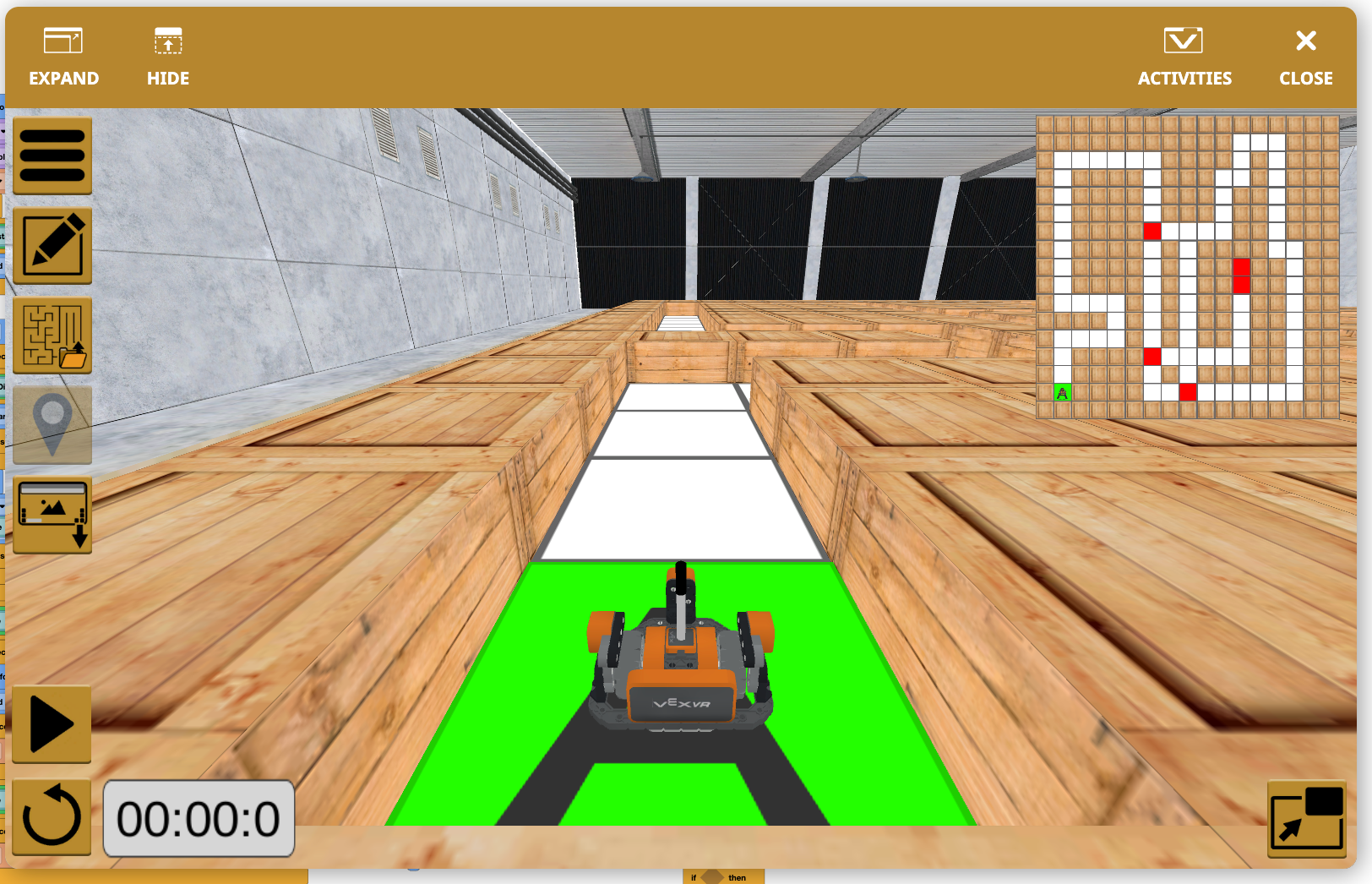
📋 Challenge Requirements
✅ What You MUST Do:
- Start at position A (green square)
- Navigate to the double red block at the end
- Use sensors only to make decisions
- Use a counter algorithm to track red blocks
- Create a wall follower OR turn counter algorithm
- Use the Stop Project block at the finish
❌ What You CANNOT Do:
- Do NOT use deterministic blocks like "drive forward for ___ inches"
💡 Programming Concepts You'll Need
1. Distance Sensor
Use the Distance Sensor to:
- Check if there's a wall in front of you
- Decide when to turn
- Detect when you're close to obstacles
if FrontDistance in inches >= 8 then...(wall is far - keep going)if FrontDistance in inches < 8 then...(wall is close - need to turn)
2. Color Sensor (Red Block Counting)
Use the Color Sensor to:
- Detect red blocks in the maze
- Count how many red blocks you've passed
- Make different decisions based on the count
turnCount– tracks what turn you've encountered with the distance sensorcolorCount– helps count color detections
3. Counter Algorithm Pattern
You'll need to create a counter that:
- Detects when the robot sees a red block
- Increases a count variable
- Makes different turning decisions based on the count
- Example: 1st red = turn right, 2nd red = turn left, 3rd red = turn right, etc.
⚠️ CRITICAL: The Red Block Counting Challenge!
THE PROBLEM:
When your robot drives over a red block, the Color Sensor reads "red" many times per second. Without proper timing, your counter will increment multiple times for the SAME red block!
Example of what goes wrong:
- Robot sees red block #1
- Counter goes: 1... 2... 3... 4... 5... (while still on the same block!)
- Your turns are now all messed up!
THE SOLUTION:
Use wait blocks to give your robot time to clear the red block before counting again.
Scenario A - Driving Straight Through a Red Block:
Time needed: About 1 second to drive straight through
Scenario B - Turning at a Red Block:
Time needed: About 0.5-1 second total with waits before and after the turn
KEY TIMING TIPS:
- ⏱️ Straight through: Use a 1 second wait to clear the red block
- ⏱️ Turning: Use 0.5 second waits before and after the turn
- ⏱️ Experiment with times between 0.2-1 seconds if your robot is counting wrong
- ⏱️ Too short = counts multiple times on same block
- ⏱️ Too long = robot moves too slowly (but still works!)
🧭 Navigation Strategy - Choose ONE!
🧩 Block Types You'll Use
Refer to the example block images provided to help you build your program. You should use:
- Forever loops – to continuously check sensors
- If-then statements – to make decisions based on sensor values
- Drive forward – basic movement (no distance specified!)
- Turn right/left – for navigation (with degree amounts like 90°)
- Wait blocks – CRITICAL for red block counting! (0.2-1 seconds)
- Stop driving – to pause movement before turning
- Set/Change variables – for your counters (
turnCount,colorCount) - Comparison operators – to check sensor values (>, <, =, >=)
- And/Or logic – to combine conditions
- Stop Project – to end the program at the finish line
💪 Tips for Success
- Master the wait times first! This is the #1 issue students face
- Test frequently! Run your code often to see if counters work correctly
- Watch your counter values – if turnCount jumps from 1 to 5, you need longer waits!
- Start with longer waits (1 second) and make them shorter if needed
- The finish line is special: Stop at the double red block, not single reds
- Plan your turns: Write down: Red 1 = right, Red 2 = left, Red 3 = right, etc.
- Use colorCount as a lock: Set to 1 when detecting red, reset to 0 after clearing
- Start simple: Get ONE red block detection working first, then add more
- Debug systematically: If counter is wrong, focus ONLY on wait times first
- Distance matters: Experiment with thresholds (8 inches vs 6 inches)
🔧 Common Challenges & Solutions
Problem: Robot counts the same red block multiple times (turnCount jumps from 1 to 4!)
Solution: Add or increase your wait time after detecting red (try 1 second for straight, 0.5 seconds for turns)
Solution: Use colorCount as a "lock" - only count when colorCount == 0
Problem: Robot turns at the wrong spots
Solution: Check that your turnCount values match the actual turn sequence you need
Solution: Make sure you're resetting colorCount to 0 after clearing each red block
Problem: Robot gets stuck in a corner
Solution: Make sure your FrontDistance threshold is appropriate (try 8 inches)
Solution: Check that you have "drive forward" after your turns
Problem: Robot doesn't stop at the double red block
Solution: You need special logic to detect TWO red blocks in a row, not just one
Solution: Check if turnCount reaches a specific number to trigger Stop Project
Problem: Robot moves too slowly
Solution: Your wait times might be too long - try reducing from 1 second to 0.5 seconds
Solution: This is okay! Better to be slow and accurate than fast and wrong!
✅ Success Criteria
Your program is successful when:
- The robot starts at position A
- The robot navigates through the entire maze using the Distance and Color Sensor
- The robot counts each red block exactly ONCE (no double-counting!)
- The robot correctly turns at each red block using the counter
- The robot reaches the double red block finish line
- The program stops using the Stop Project block
- No deterministic blocks are used (no "drive forward 12 inches" type commands)
- Only sensors (Distance and Color) are used for navigation decisions
📤 Submission Requirements
When you complete the challenge, you must submit THREE deliverables to:
Teams → Class Notebook → [Your Name] → Unit 1 Intro to VEX → Sensor Quiz
Deliverable 1: Program File
- Save your file as:
YourName_maze.vrblocks - Upload to the Sensor Quiz folder
Deliverable 2: Screenshot of Visual Block Code
- Take a screenshot showing your complete block code
- Make sure ALL blocks are visible in the screenshot
- You may need to zoom out or take multiple screenshots
- Save as:
YourName_maze_code.png(or .jpg) - Upload to the Sensor Quiz folder
Deliverable 3: Video of Robot Running the Maze
- Use Windows Screen Capture to record your robot successfully completing the maze
- The video should show:
- The robot starting at position A
- The robot navigating through the entire maze
- The robot correctly turning at red blocks
- The robot reaching the double red block finish line
- The program stopping
- Save as:
YourName_maze_video.mp4 - Upload to the Sensor Quiz folder
How to capture video on Windows:
- Press Windows Key + G to open Xbox Game Bar
- Click the Record button (circle icon) or press Windows Key + Alt + R
- Run your maze program
- Stop recording when complete
- Video will be saved to your Videos/Captures folder
📊 Grading Rubric
| Criteria | Points | Description |
|---|---|---|
| Distance Sensor Usage | 0.7 | Robot uses Distance Sensor correctly at least once to make a navigation decision (e.g., detecting walls, determining when to turn). |
| Color Sensor Usage | 0.7 | Robot uses Color Sensor correctly at least once to detect red blocks. No deterministic blocks used (no "drive forward X inches"). |
| Counter Algorithm | 1.0 | Program uses a counter variable (turnCount or similar) to track turns and make navigation decisions. |
| Successful Navigation | 1.0 | Robot starts at position A and successfully navigates through the entire maze to reach the double red block finish line. |
| Submissions Complete | 0.6 | All three deliverables submitted: .vrblocks file, screenshot of code, and video of robot completing maze or attempting to complete maze. |
| TOTAL | 4.0 | Maximum Points |
Grade Scale:
- A: 3.6 - 4.0 points
- B: 2.6 - 3.5 points
- C: 1.6 - 2.5 points
- D: 0.6 - 1.5 points
- F: 0 - 0.5 points
📝 Before You Submit - Final Checklist
- My robot stops at the finish line using Stop Project
- I have tested my program at least 3 times successfully
- I have saved my .vrblocks file with my name
- I have taken a screenshot of my complete code
- I have recorded a video of my robot completing the maze
- All three files are uploaded to the Sensor Quiz folder
🚀 Ready to Start?
Launch VEX VR
Good luck, robotics engineers!
Remember: Wait blocks are your best friend for accurate counting!
Use your sensor knowledge, counter logic, and problem-solving skills to conquer the maze! 🤖🏁